Orders
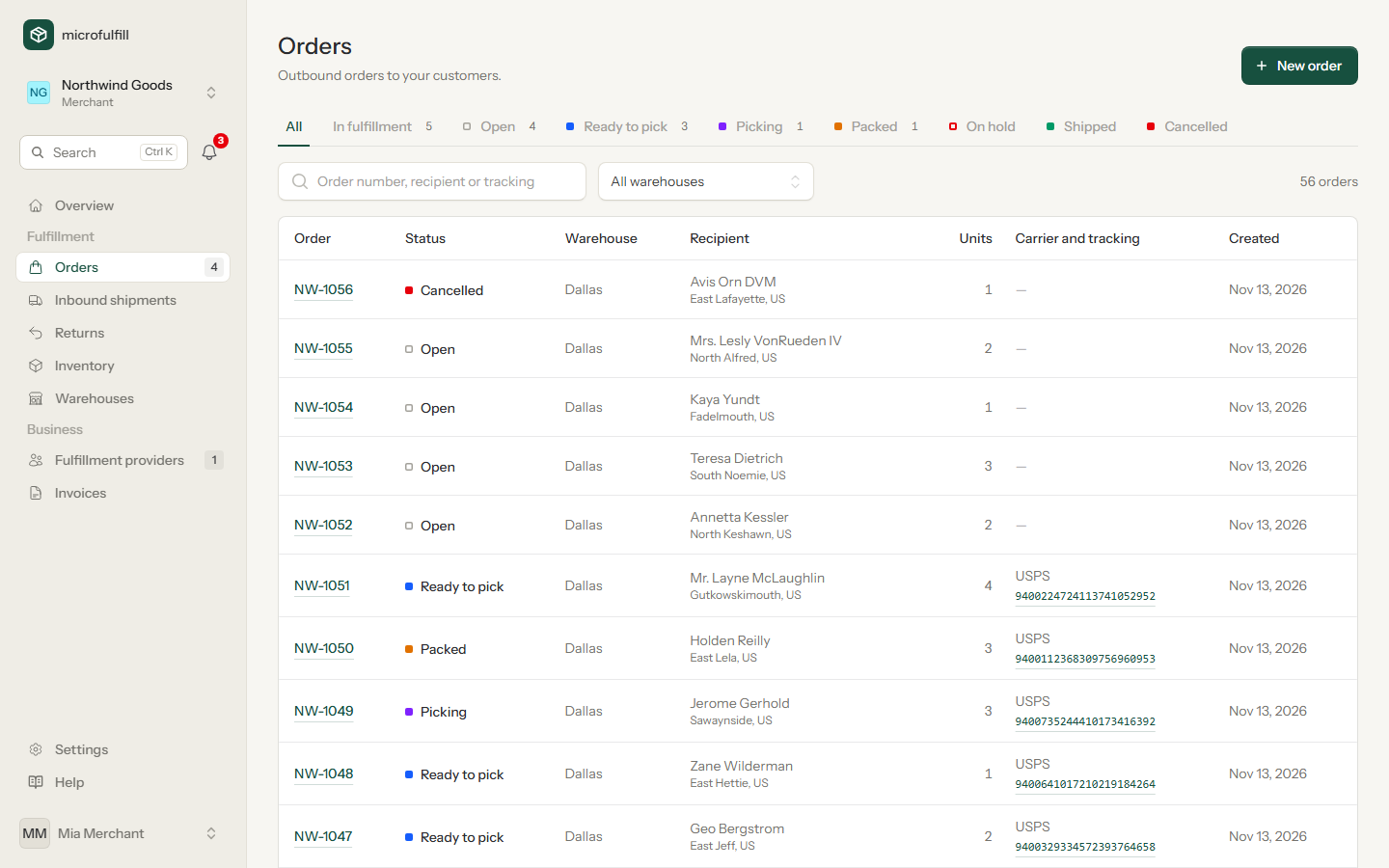
Filter the list with the status tabs and by warehouse, or search by order number, recipient or tracking number. In fulfillment shows all orders the warehouse is working on; the last column then shows how long each order has been waiting since its label was bought. Orders waiting longer than four hours are marked. On phones the status filter is a drop-down list.
To jump to an order from anywhere, use the search in the sidebar.
| Status | Meaning |
|---|---|
| Open | Created, no label yet. Can be changed. |
| Ready to pick | Label bought, the warehouse has been notified. |
| Picking | The warehouse is picking the products. |
| Packed | Packed and labelled, waiting for the carrier. |
| On hold | The warehouse cannot ship the order, for example because stock is missing. |
| Shipped | Handed to the carrier. Stock has been booked out. |
| Cancelled | Will not be shipped. |
Create an order (merchants)
- Click New order.
- Choose the products and quantities. Below each product you see how many units are available in the selected warehouse.
- Enter the shipping address. Choose the country from the list; for countries like the US or Canada, State / region suggests the matching states (you can still type any text).
- Choose the warehouse and optionally enter your shop's order number and notes for the warehouse.
- Click Create order.
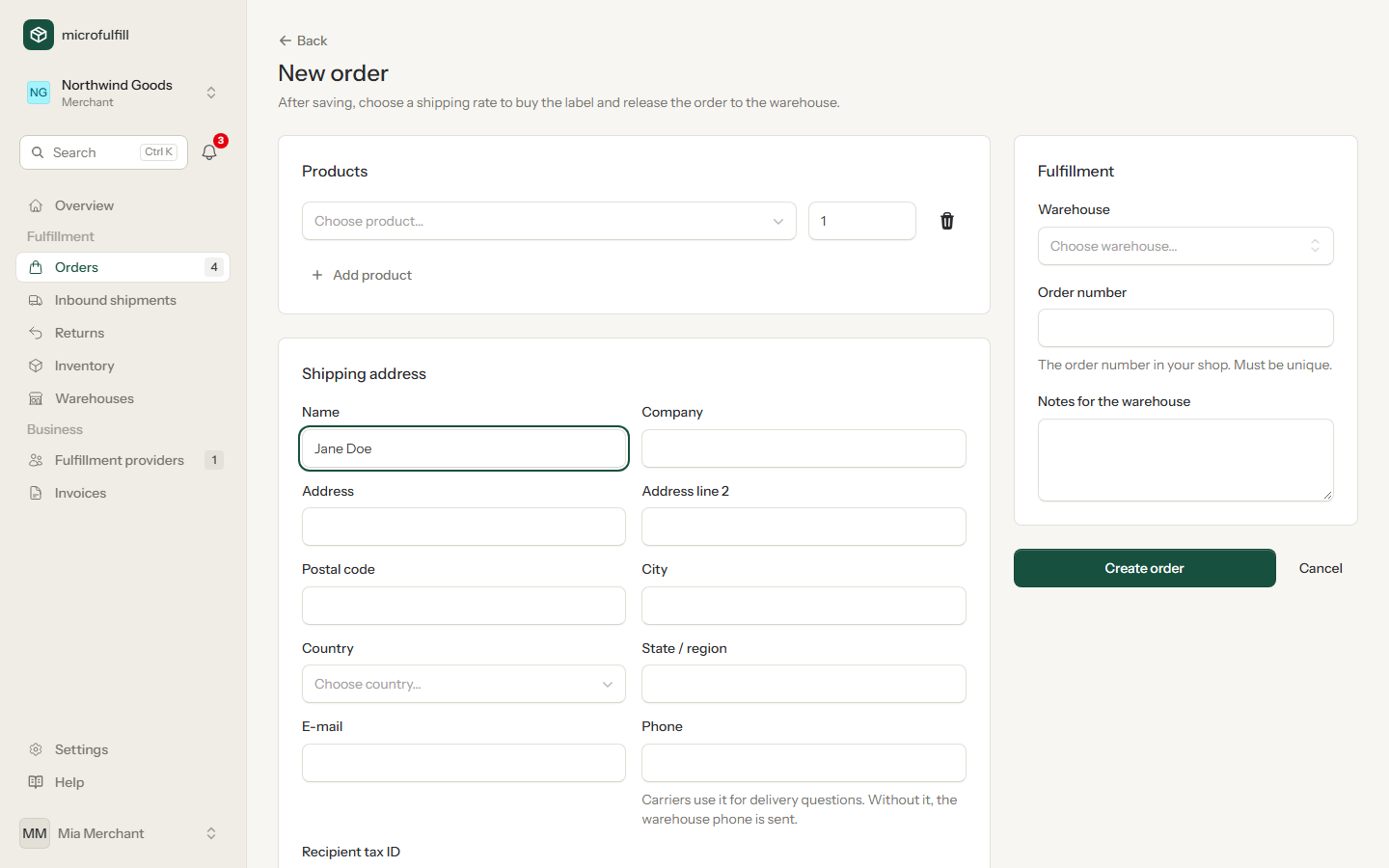
If there is not enough stock, you see a warning with the missing quantities. You can still save the order; the warehouse ships it once the stock has arrived.
Orders can also be created automatically through the API.
Add a document for the parcel (merchants)
Does your invoice or delivery note belong in the parcel? Open the order and attach it as a PDF (up to 10 MB) under Document for the parcel. The warehouse prints it together with the packing slip and puts it into the parcel. A new document replaces the old one; you can change or remove it until the order is shipped. With the API, send it to POST /api/v1/orders/{id}/attachment.
Buy the shipping label
Open the order and click Get rates. microfulfill asks your label provider for rates and marks the cheapest and the fastest option. Choose a rate and click Buy label.
Above the rates you see the box the order is quoted with (the smallest box of the warehouse that fits) and the total weight. Use Change box if you know better; rates are then requested again.
For shipments abroad, the estimated import taxes and duties that the recipient pays on delivery are shown below the price. Media tariffs such as USPS Media Mail are only offered when every product is a book or recorded media (by its HS code).
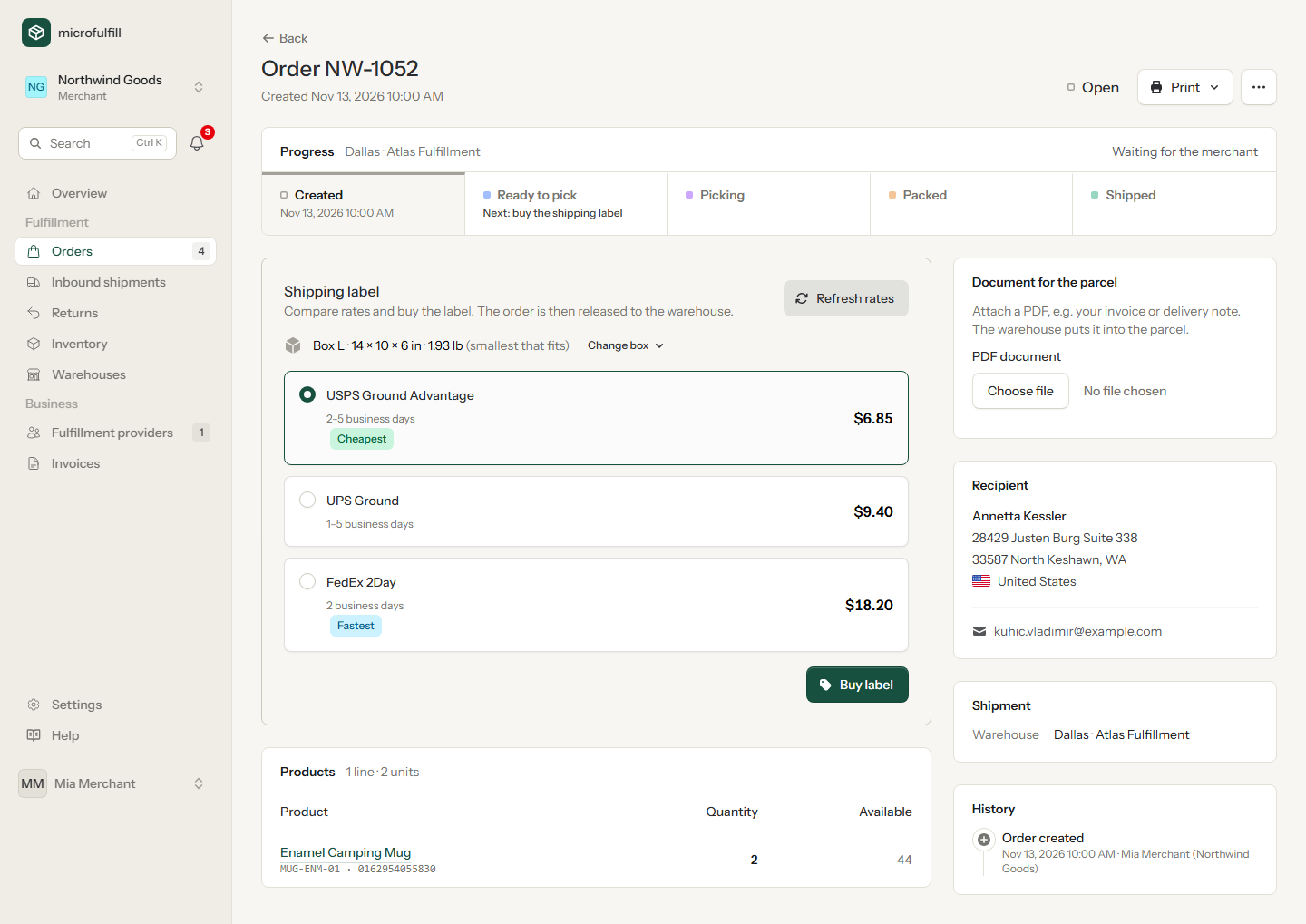
The order is then ready to pick: the warehouse receives an e-mail with the products to pack.
Who buys the label is agreed in the partnership: usually the merchant with their own carrier account, or the provider, who then passes the shipping costs on in the invoice.
Wrong address? Change the order or cancel the label
As long as the order has not been shipped, the side that bought the label can cancel it:
- Change order (new label): the label is cancelled and refunded, the order goes back to Open and the order form opens. Correct the order and buy a new label.
- Cancel label: the same without opening the form.
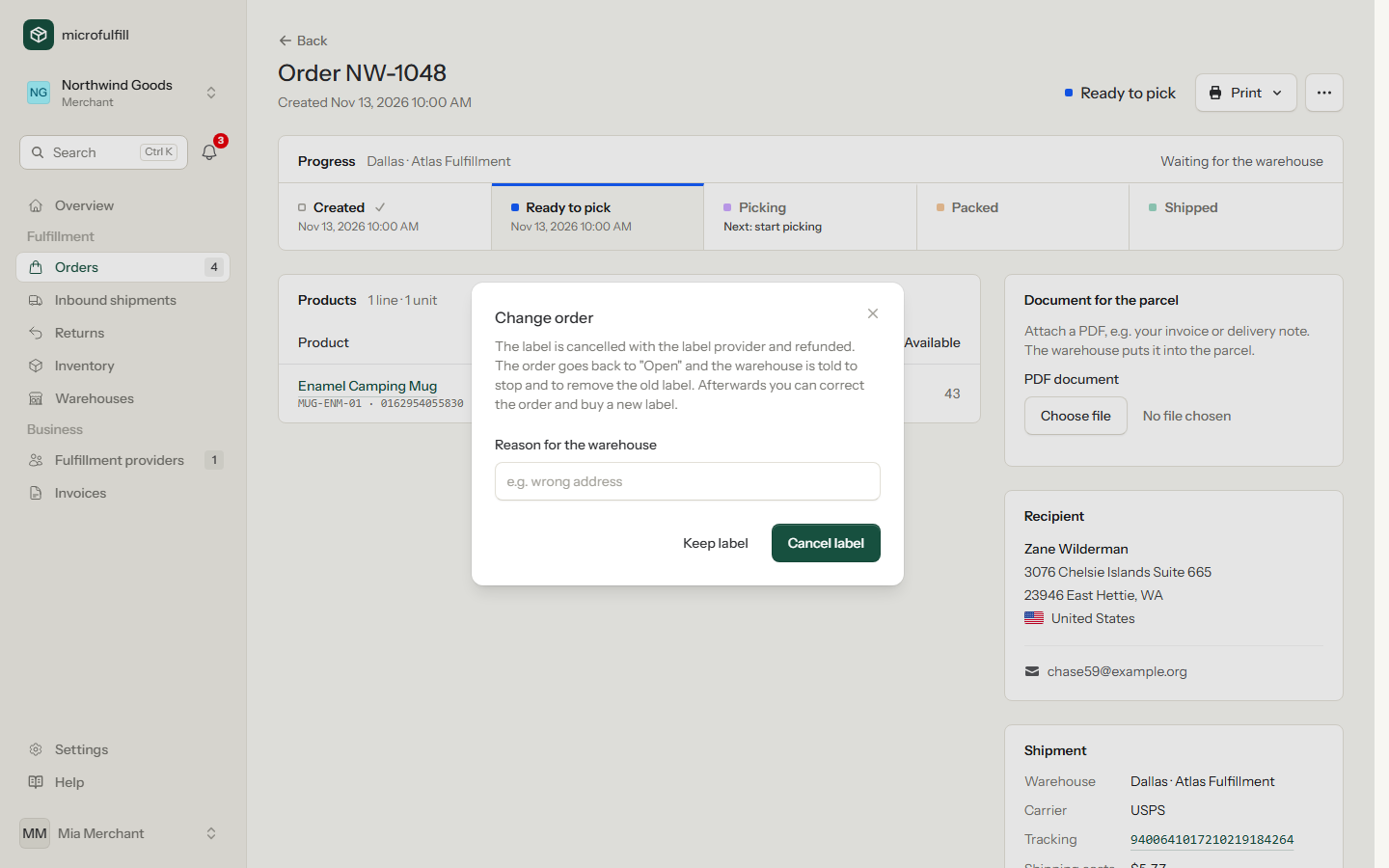
The warehouse receives an e-mail to stop, and the order shows Do not ship this order until a new label is bought. With the new label, the warehouse is asked to replace the old label on the parcel; the order is marked Label changed until it is packed again.
The label provider refunds the label (Easyship: within about ten business days). If the label provider refuses, for example because the parcel is already in transit, you can remove the label without refund.
When the warehouse cannot ship an order
Stock is missing or damaged? On the order page the warehouse chooses Cannot ship: put on hold in the menu and enters a reason, for example "2 of 5 mugs are missing". The order then is On hold: it leaves the warehouse's work queue, the label stays valid and the stock stays reserved.
The merchant is told by e-mail and in the app, and finds the order under Waiting for you on the start page. The merchant can:
- send the missing stock with an inbound shipment and wait,
- change the order with Change order (new label), or
- cancel it.
As soon as the order can be shipped, the warehouse clicks Continue order. It is then Ready to pick again.
Cancel an order (merchants)
Click Cancel order in the menu and enter a reason. A bought label is cancelled and refunded first, and the warehouse is told not to ship the order. Cancelled orders cost no fulfillment fees.
Pick, pack and ship (providers)
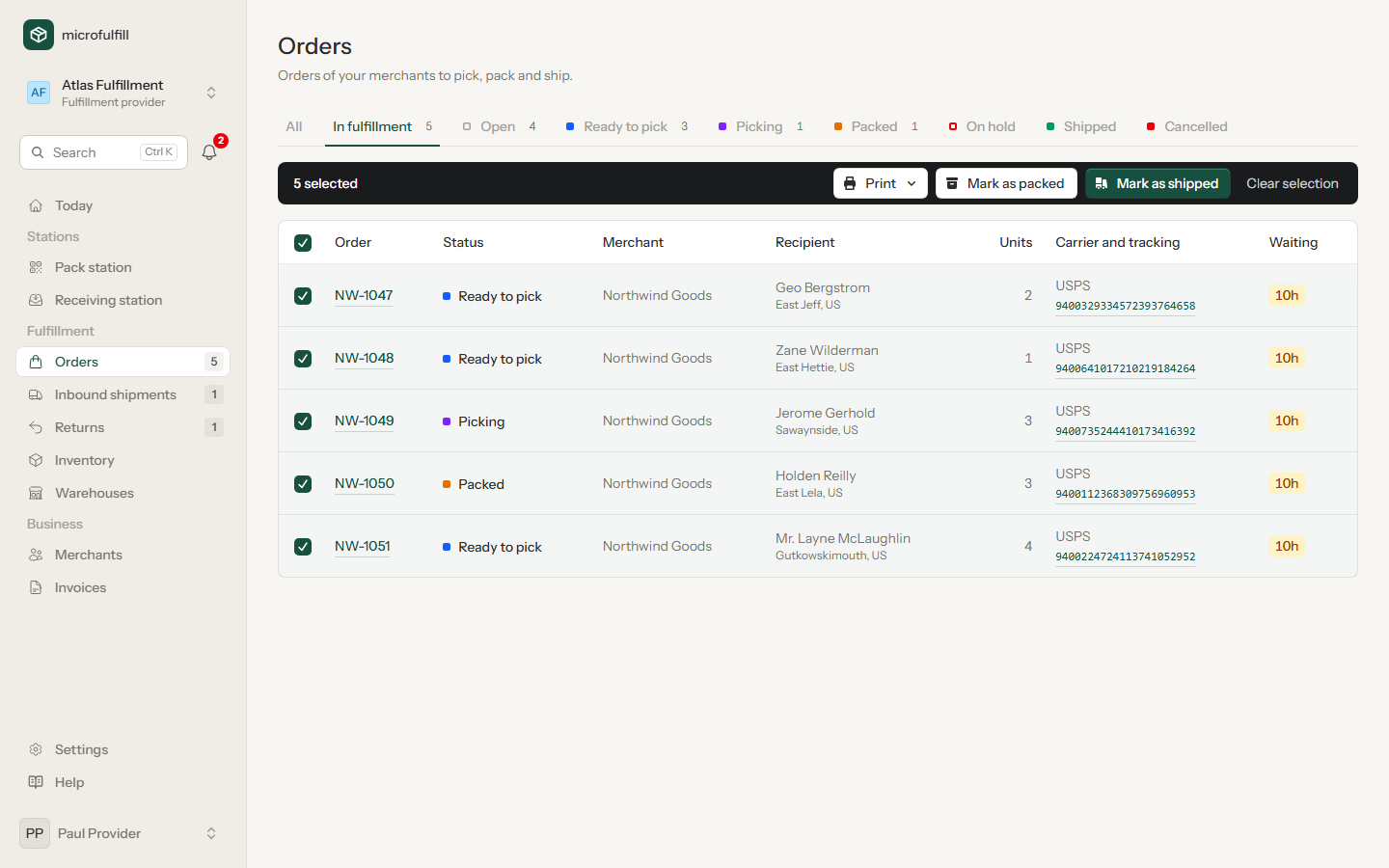
Work with several orders at once:
- Open Orders → In fulfillment and select orders (or all with the checkbox in the header). A dark bar with the actions for the selection replaces the filters.
- Print → Pick list prints the products of all selected orders, summed per SKU, and sets the orders to Picking.
- Print → Packing slips and Print → Shipping labels print one PDF for all orders.
- Pack the parcels at the pack station or click Mark as packed.
- When the carrier picks up the parcels, filter by Packed, select them, print Print → Pickup list for the carrier (parcels per carrier with tracking numbers and a signature line) and click Mark as shipped. The products are booked out of your stock and the fees are added to the invoice.
Each step is optional: in the list you can also mark a Ready to pick order as shipped directly.
The order page
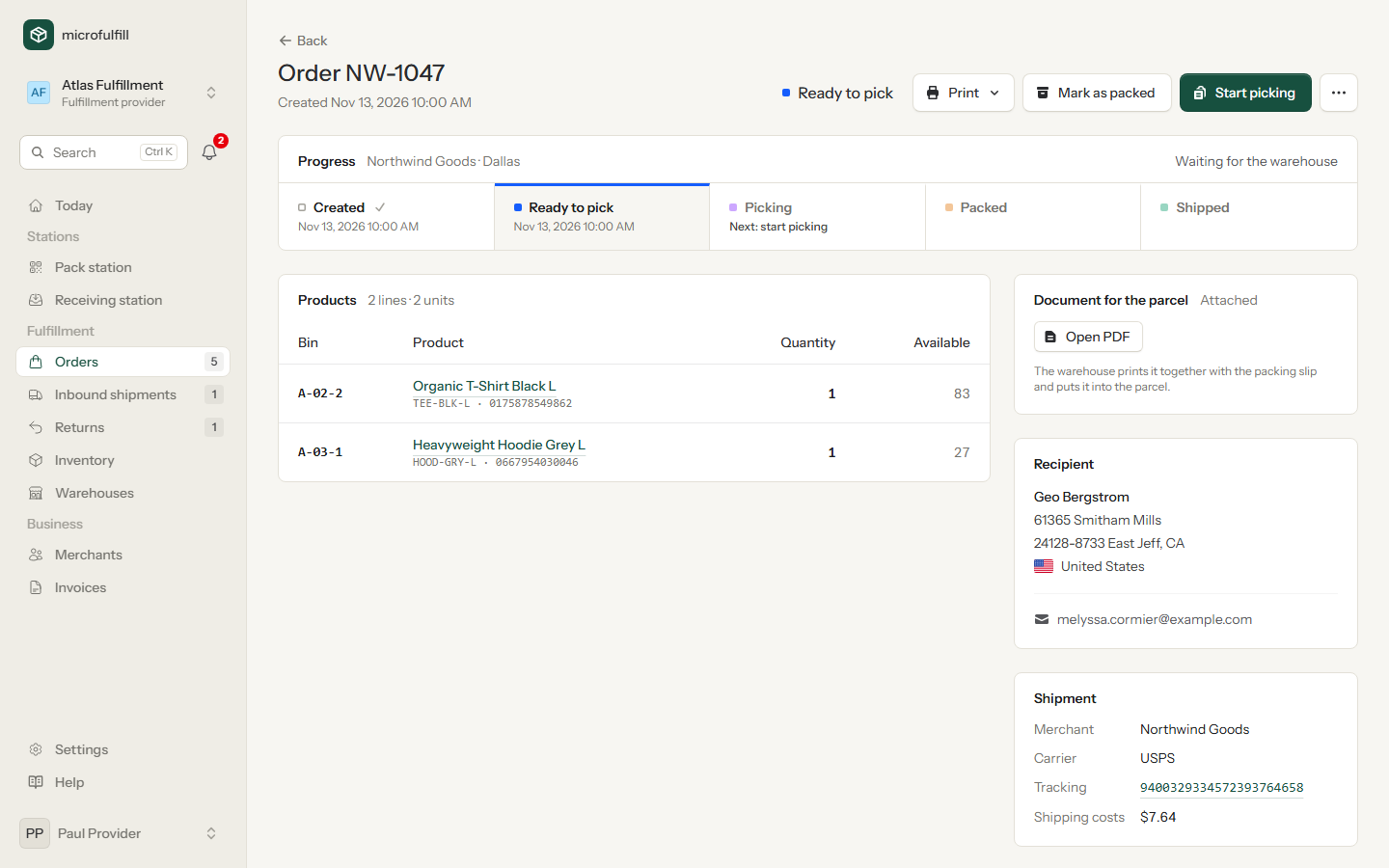
Progress shows the steps from Created to Shipped with the time each one was reached, names the next step and says whether the order is waiting for the merchant or the warehouse. The button at the top right is always the next step of the warehouse: Start picking, then Mark as packed, then Mark as shipped. The warehouse sees the bin location in front of each product. Shipment lists carrier, tracking number and shipping costs and, once the order is shipped, how the fulfillment fee is made up. Below it you find the History of the order; the documents are under Print.
If the system shows less stock than the order needs, you are warned before shipping. Count the stock afterwards to correct it.