Getting started
Create an account
- Open the registration page and choose whether you are a merchant (you sell products and want them shipped) or a fulfillment provider (you run a warehouse and ship for merchants). The panel on the right lists what the chosen role can do.
- Enter your name, your company name, your e-mail address and a password.
- Confirm your e-mail address with the link we send you.
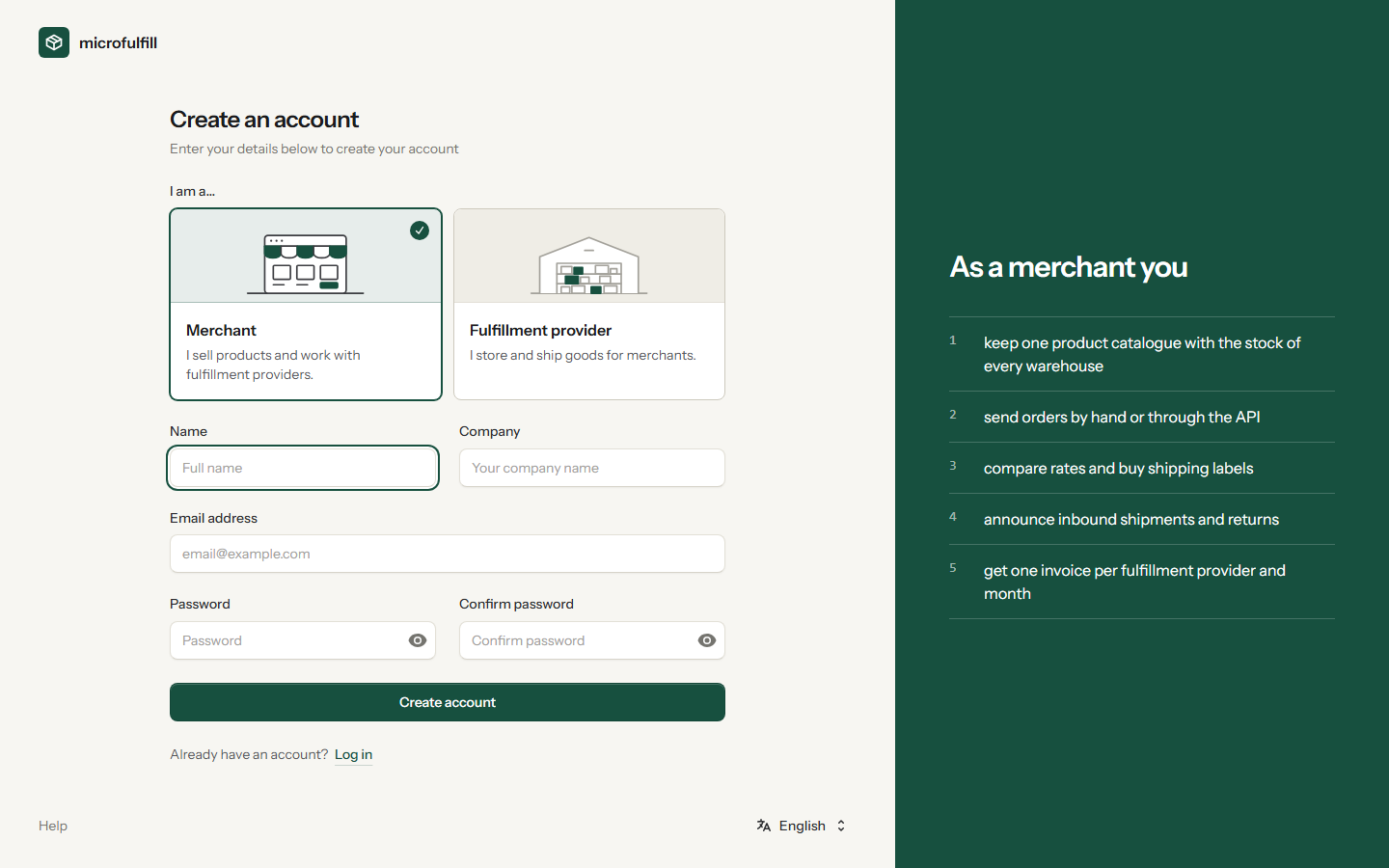
The sign-in pages follow the language of your browser. To change it, use the language menu at the bottom of the page; the choice is kept for your new account. Later you change the language under Settings → Profile.
Your account belongs to an organization. You can invite colleagues to it (see Settings) and belong to several organizations at once. Switch between them with the organization menu at the top of the sidebar.
Do you have a second company, or are you a merchant who also runs a warehouse? Choose New organization in the same menu, pick merchant or fulfillment provider and enter a name and an e-mail address. Each organization has its own partners, stock, invoices and members; its e-mail address must differ from your other organizations because partners connect through it.
Search
Search at the top of the sidebar (or Ctrl + K) finds orders, products, inbound shipments and returns by the numbers printed on them: order number, tracking number, SKU, GTIN, shipment or return number. Names of recipients and products work too.
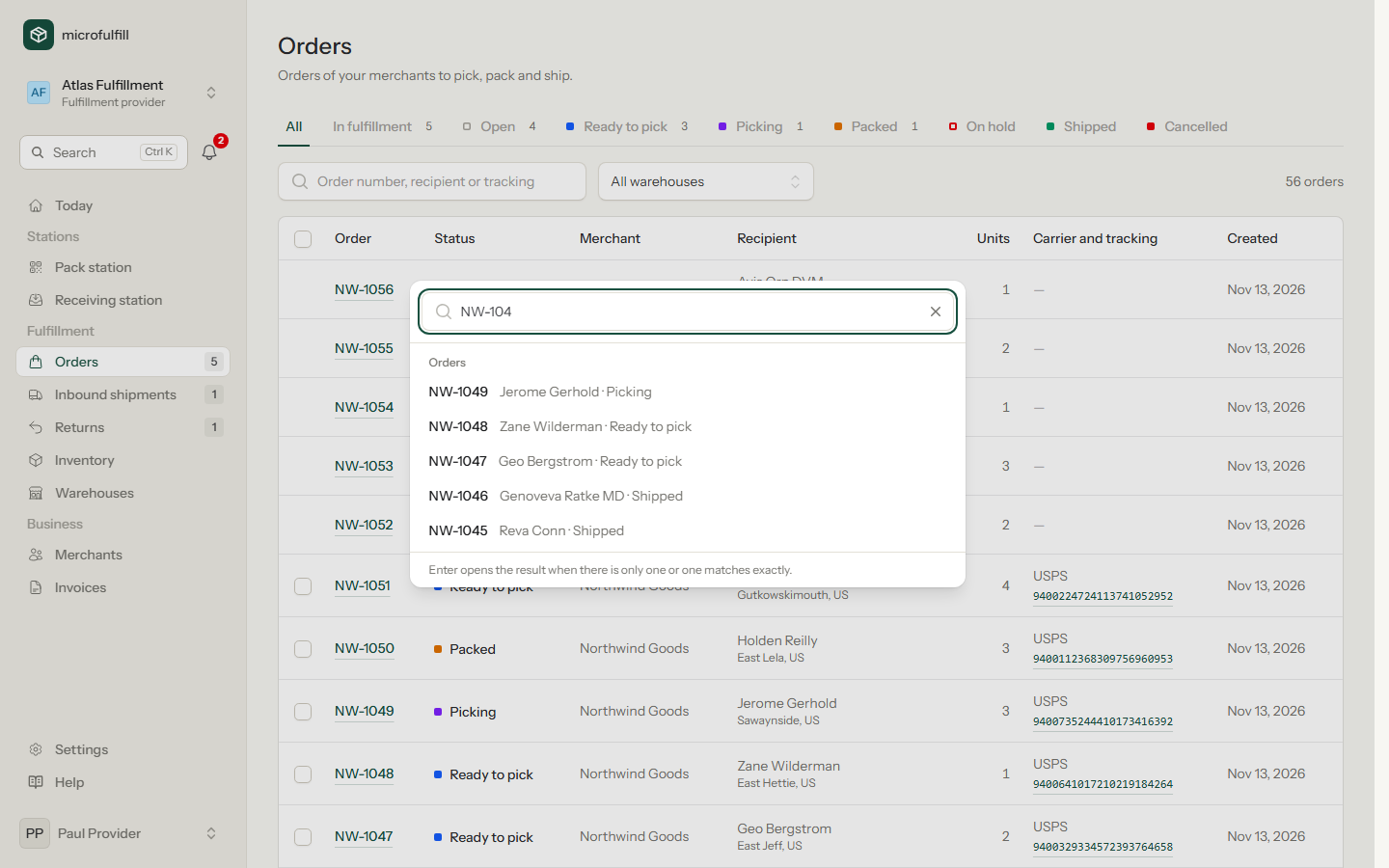
Press Enter to open the result when there is only one or one matches exactly. A barcode scanner does this by itself: open the search, scan a label, and you are on the order.
Notifications
The bell shows what happened since you last looked: a new order for the warehouse, a cancelled label, an order on hold, a shipment on its way, a received return or a partnership request. Everybody in your organization sees the same list; the red number counts what is new for you. Click an entry to open it. Notifications are kept for 60 days. The e-mails you know are still sent.
On your phone
On phones and tablets the menu moves to the bottom of the screen: your start page, Orders, Pack (or Inventory for merchants), Inbound and More for everything else. Search and bell are at the top. Lists show one card per order instead of a wide table.
Secure your account
Under Settings → Security you can turn on two-factor authentication or sign in with a passkey. We recommend this for every account that buys shipping labels or sees invoices.
First steps for merchants
- Connect your fulfillment provider with the e-mail address of their organization.
- Add your products to the inventory.
- Connect your label provider, for example Easyship.
- Announce an inbound shipment to send stock to the provider's warehouse.
- Create orders by hand or through the API.
First steps for fulfillment providers
- Add your warehouses.
- Set your default fees for new merchants.
- Invite your merchants or accept their requests.
- Receive inbound shipments and ship orders.
Read Concepts for an overview of how merchants and providers work together.
Install microfulfill as an app
You can put microfulfill on the home screen of your phone, tablet or computer. It then opens in its own window without the browser's address bar, which leaves more room at the pack and receiving station.
- Android (Chrome): open the menu and choose Add to Home screen or Install app.
- iPhone and iPad (Safari): tap Share and choose Add to Home Screen.
- Computer (Chrome, Edge): click the install symbol in the address bar.
The app always needs a connection: stock and orders are never shown from a copy on the device. Without a connection you see a short notice instead.