Pack station
The pack station helps packers ship the right products. It works with any barcode scanner that types the code and presses Enter (USB or Bluetooth "keyboard" scanners), and with the keyboard. It is available for organizations with their own warehouses.
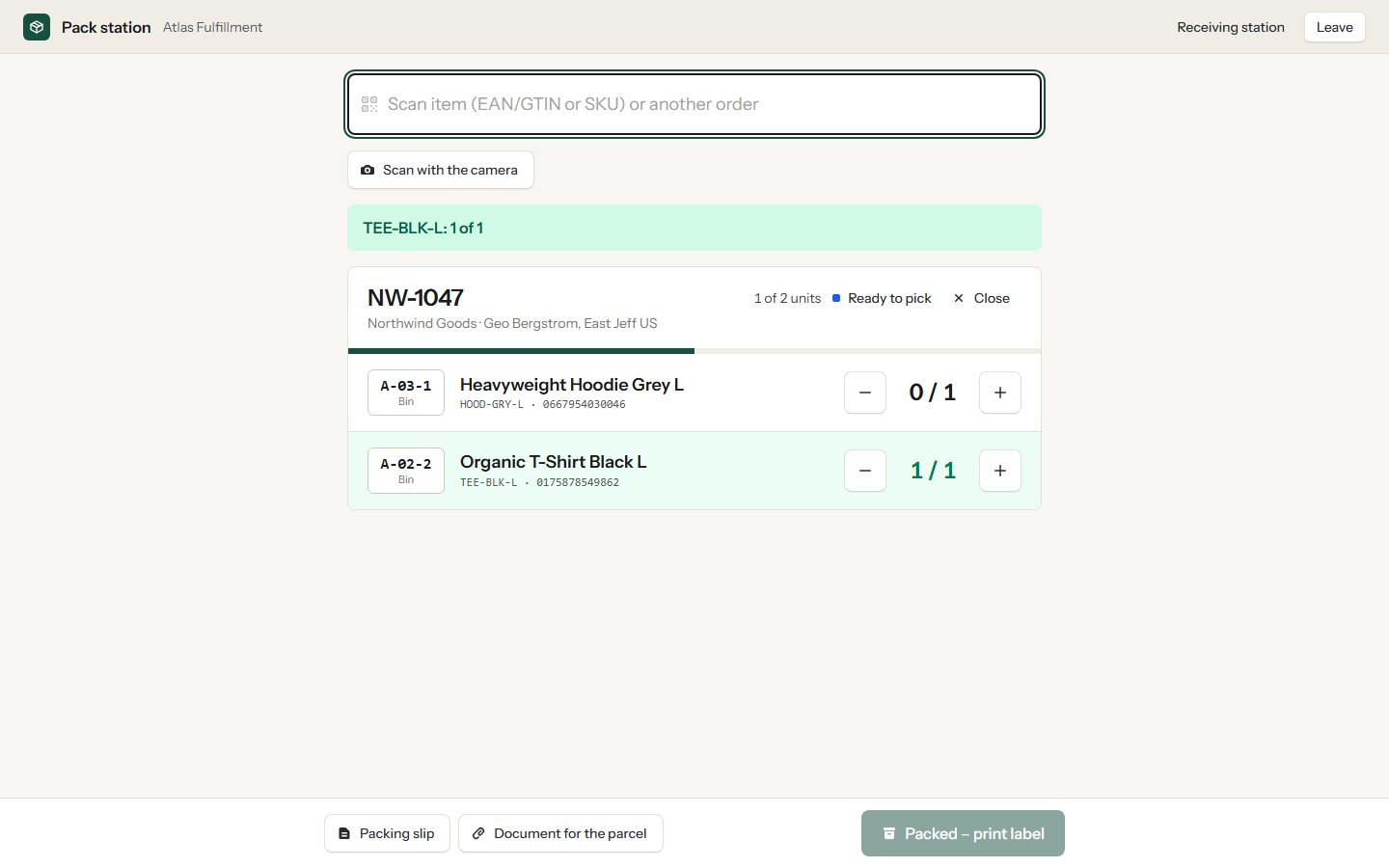
- Open Pack station under Stations in the sidebar. The station fills the whole screen without the sidebar, so it also works on a tablet or phone at the packing bench. Leave at the top right takes you back.
- Scan the order number from the packing slip or the tracking number from the label.
- Scan every product (EAN/GTIN or SKU). Each scan counts one unit; wrong products and too many units are reported immediately. Use + and − to correct a count by hand.
- The bar under the order number shows how many units are scanned. When all products are scanned, click Packed – print label at the bottom. The order is marked as packed and the shipping label opens for printing.
Orders without a label cannot be packed. If the label of an order was replaced, the pack station reminds you to use the new label.
If the merchant attached a document for the parcel (for example their invoice), the pack station shows Document for the parcel. It is also printed right after the order's packing slip.
Tip: add the GTIN/EAN to your products in the inventory so that products can be scanned by their barcode.
Scan with the camera
No hand scanner at hand? On a phone or tablet, tap Scan with the camera below the scan field and allow camera access. Hold a barcode in front of the camera; each code is handled exactly like a scan with a hand scanner, and the camera stays on for the next one. The same code is ignored for a few seconds so that one label is not counted twice. Tap Turn off the camera when you are done.
The camera needs good light and is slower than a hand scanner. It is meant for occasional packing; for a busy bench a hand scanner remains the better tool. The button only appears when the browser offers a camera.