Inventory
Merchants manage their products once and use them at every provider. Providers see the products of their merchants and the stock in their own warehouses.
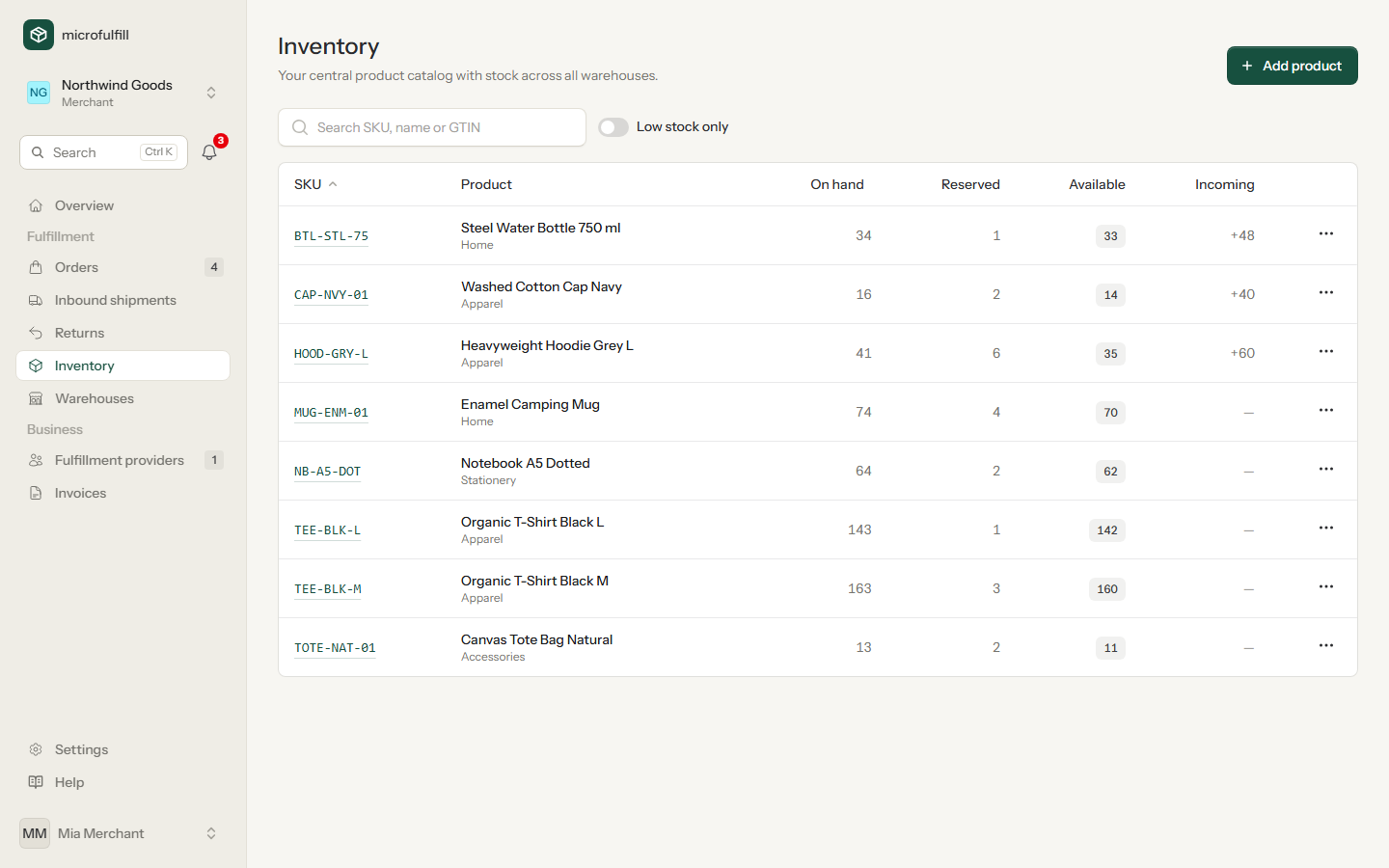
The list shows the stock over all warehouses: on hand, reserved, available and incoming (see Concepts). Search by SKU, name or GTIN, or show only products with low stock. Merchants receive one e-mail per day listing the products that reached their low-stock alert.
Add a product (merchants)
- Click Add product.
- Enter SKU and name. The category is optional and only for your own grouping.
- Choose the HS code (customs tariff number): type a number such as
6109or an English product term such ast-shirt cottonand pick a match. Longer national codes (e.g. 8 digits in the EU, 10 in the US) can be typed in full. The HS code is needed for labels with Easyship and for shipments abroad; without it, rates cannot be requested for orders with this product. - Enter weight, dimensions and customs value. They are needed to buy shipping labels.
- Optionally set Low-stock alert at: the product is highlighted when its available stock falls to this quantity.
The SKU must be unique within your organization.
Product details
Click a SKU to see the stock per warehouse and every stock movement.
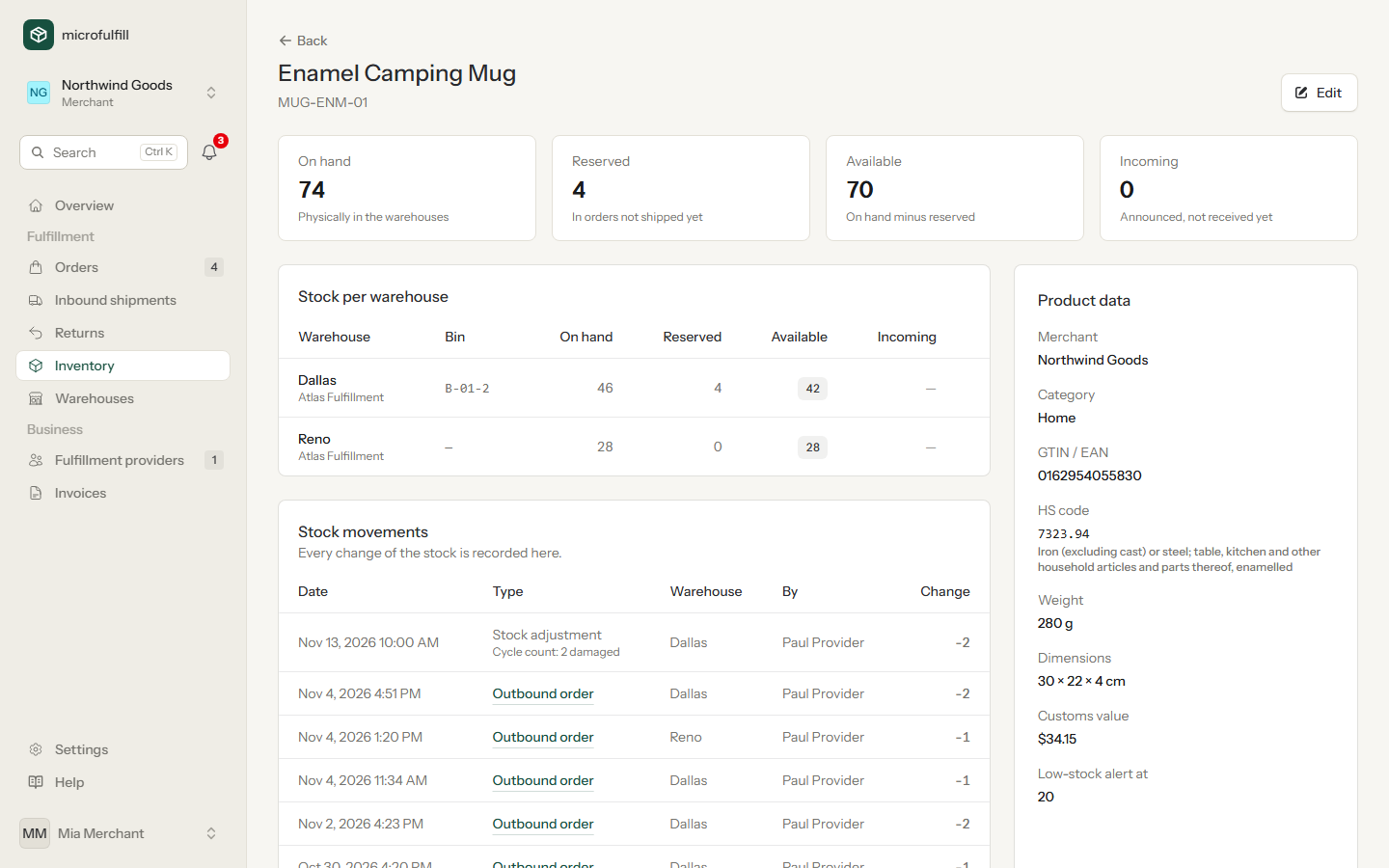
Each movement shows when, why (inbound shipment, order or stock adjustment) and by whom the stock changed. Click an order or shipment to open it.
Count stock (providers)
If the physical stock differs from the system, count it:
- Open the product and click Count next to your warehouse.
- Enter the quantity you counted and a reason, for example "cycle count" or "damaged".
- Click Save count.
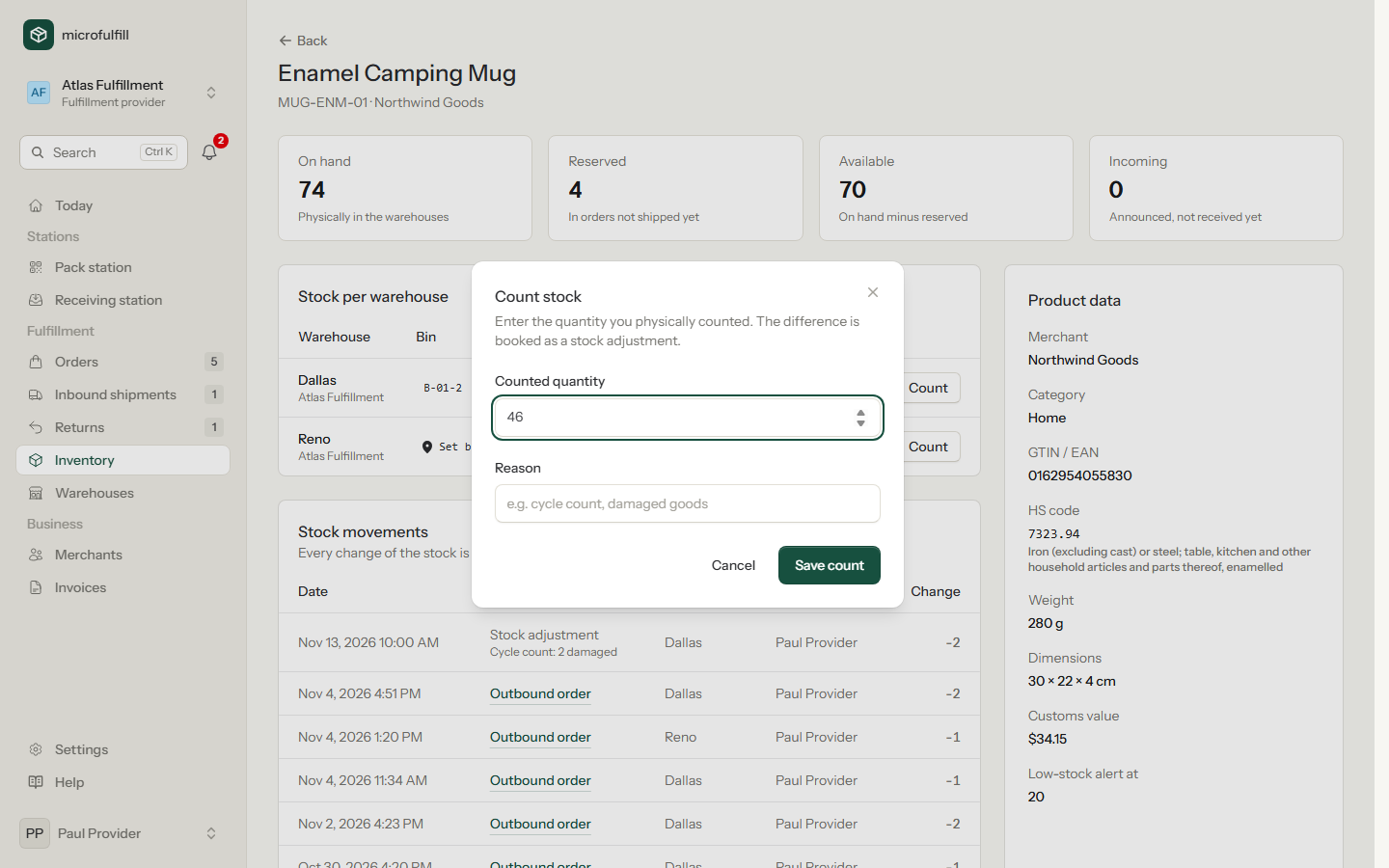
The difference is booked as a stock adjustment, so the merchant sees what was corrected and why. Use Found stock in another warehouse? to book stock in a warehouse that has none of this product yet.
Bin locations (providers)
Store where a product is kept in your warehouse, for example A-03-2:
- Open the product and click Set bin (or the current bin) next to your warehouse.
- Enter the bin location and click Save.
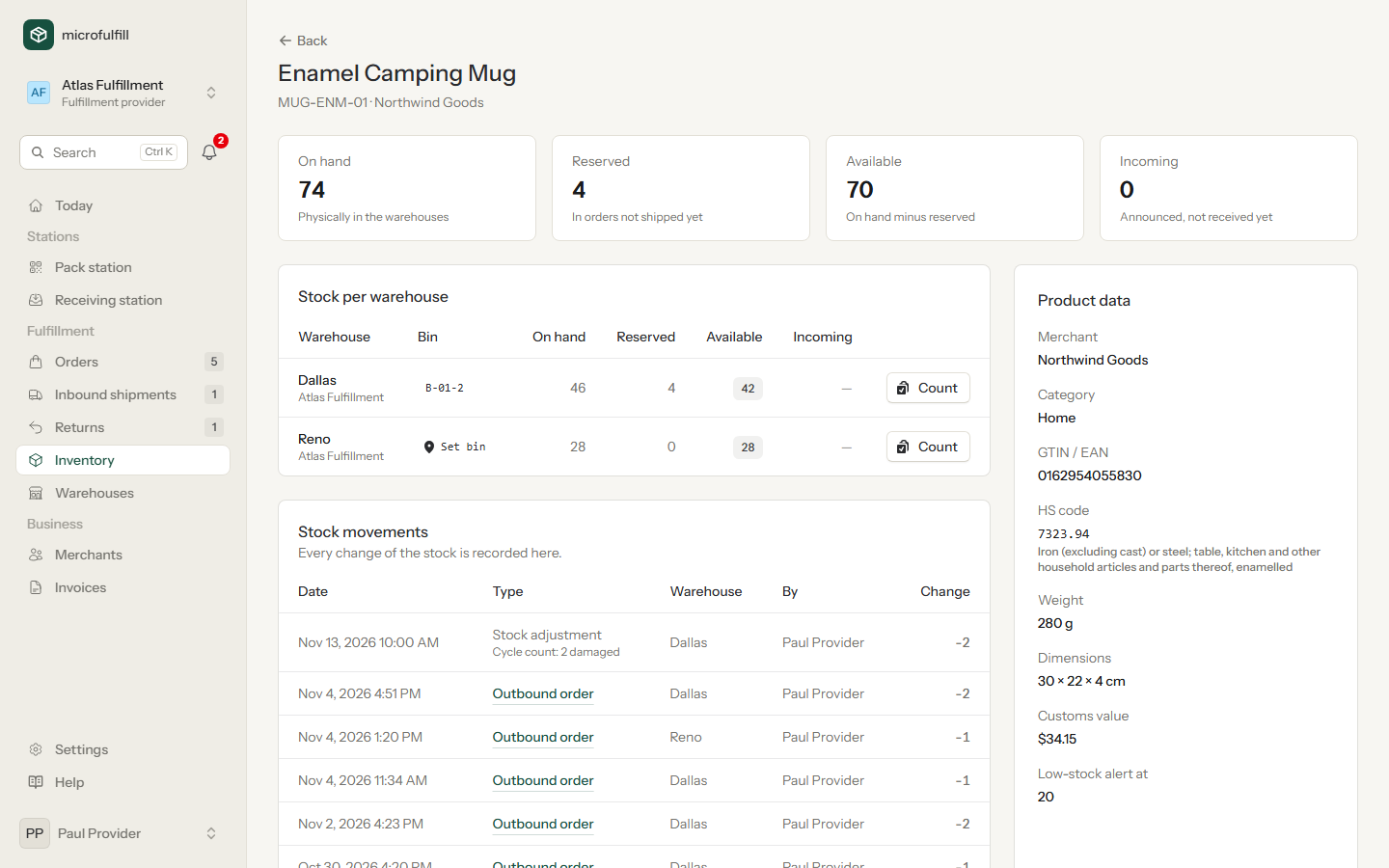
Pick lists are sorted by bin location, so pickers walk through the warehouse in order. The pack station shows the bin of every product.